 PoleLaps
Manual de ayuda
Todo lo que necesitas para cronometrar tus tandas, entender el coach y sacarle partido a PoleLaps. Si algo no está aquí, escríbenos a soporte@polelaps.com o desde Ajustes → Enviar una sugerencia, o en polelaps.com/sugerencias.
1. Antes de ir a pista
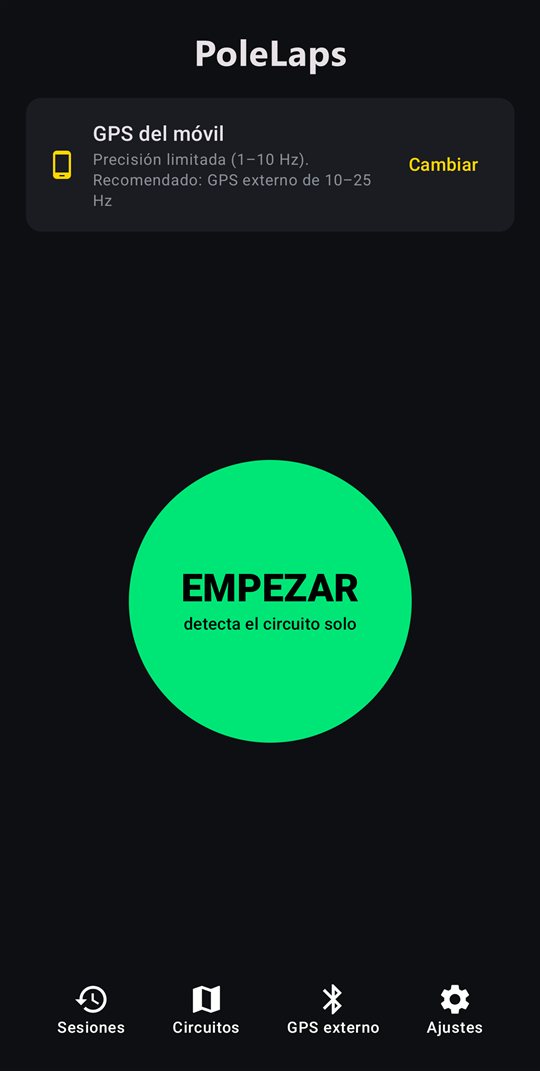
- Permiso de ubicación. La primera vez que pulses EMPEZAR la app te lo pide. Elige Mientras se usa la aplicación: es suficiente, porque durante la grabación la app sigue funcionando con la pantalla apagada (verás una notificación «Grabando sesión»).
- Batería. Algunos móviles (Samsung, Xiaomi, Huawei…) cierran apps para ahorrar batería aunque estén grabando. Si la app te muestra el aviso «Que Android no corte la grabación», pulsa Abrir ajustes y elige Sin restricciones para PoleLaps.
- Moto o coche. En Ajustes → Vehículo elige moto (verás el ángulo de inclinación) o coche (verás las fuerzas G). También decide qué sectores oficiales se usan: MotoGP/WorldSBK o F1.
- Tu garaje. Añade tus motos o coches (marca, modelo y año). Cada sesión queda asociada a uno, y así tus tiempos y la clasificación distinguen entre vehículos.
- Dónde llevar el móvil. Bien sujeto y con vista al cielo: en el depósito o el colín de la moto, en un soporte del coche, o en un bolsillo alto del mono. Dentro de una mochila o bajo el asiento la señal empeora.
2. Grabar una sesión
- En la pantalla de inicio pulsa el botón verde EMPEZAR. Arriba verás la fuente GPS y la moto o coche con que se va a grabar; toca cualquiera de los dos para cambiarlo.
- Espera a ver GPS listo. Si pone «Buscando satélites» o «GPS débil», quédate quieto a cielo abierto unos segundos antes de salir.
- Sal a pista. Al llegar a un circuito de la biblioteca la app lo detecta sola («Circuito detectado: …») y empieza a contar vueltas desde el primer paso por meta.
- Si el circuito no está en la biblioteca, pulsa MARCAR META AQUÍ justo al pasar por la línea de meta. A partir de la siguiente pasada se cuentan las vueltas, y el circuito queda guardado en Circuitos → Míos para la próxima vez.
- Para terminar, mantén pulsado el botón MANTÉN PULSADO PARA PARAR. Hay que mantenerlo para que no se pare por un toque sin querer.
Qué ves mientras ruedas
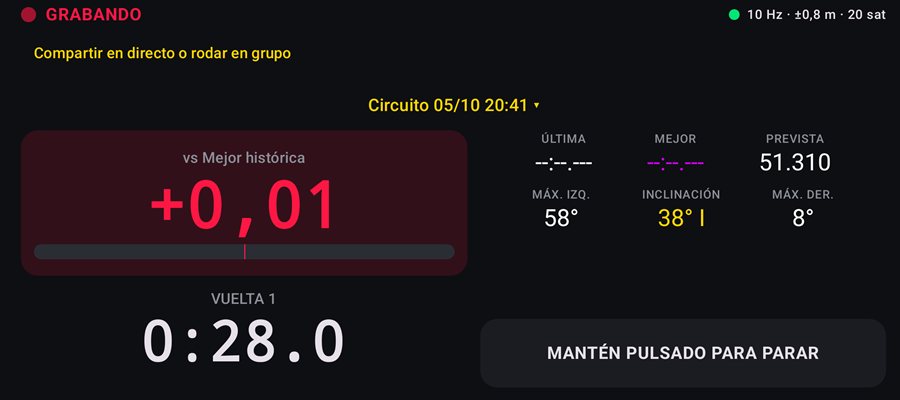
- Delta: lo que ganas (verde) o pierdes (rojo) frente a tu mejor vuelta en ese mismo punto. Aparece a partir de la segunda vuelta.
- Última, Mejor y Prevista: la prevista es cómo acabará la vuelta en curso si sigues al mismo ritmo.
- Inclinación (moto) o G lateral, frenada y aceleración (coche), con los máximos de la vuelta.
- Al cerrar cada vuelta, el tiempo aparece en grande unos segundos; en morado si es tu mejor vuelta.
- La pantalla no se apaga mientras estás en el crono. Si la apagas con el botón, al volver a encenderla verás el crono sin desbloquear el móvil (desde la versión 0.1.9), siempre que el crono estuviera en pantalla al apagarla. El resto del móvil sigue bloqueado, y al parar la grabación vuelve el bloqueo normal.
Móvil en horizontal (desde la versión 0.1.6): si lo llevas de lado en el soporte, la pantalla se reparte en dos columnas: el delta y el cronómetro a la izquierda, los tiempos, la inclinación y el botón de parar a la derecha.
Voz y vibración
Con Cantar tiempos por voz activado la app dice el tiempo de cada vuelta y si es tu mejor; útil con el móvil en el bolsillo o en moto con intercomunicador. Con Consejos del coach por voz, tras cada vuelta te dice la curva donde más perdiste y por qué («Curva 3, frenas antes»). Vibrar al cerrar vuelta usa un patrón especial en la mejor vuelta.
Si la app se cierra o el móvil se apaga
La grabación se guarda continuamente. Si se corta, al volver a abrir la app verás «La grabación se cortó a las …» con dos opciones: Continuar (sigue en la misma sesión, se pierde solo la vuelta que estaba en marcha) o Ver sesión. El aviso aparece durante 30 minutos.
3. GPS externo
En la pantalla de inicio, toca la fila del GPS (arriba, en la tarjeta del equipo). Compatibles:
- RaceBox Mini, Mini S y Micro (Bluetooth LE, hasta 25 Hz). Aparecen al pulsar Buscar dispositivos.
- PoleLaps Pod, nuestro GPS por Bluetooth (desde la versión 0.1.12; próximamente a la venta). Sale el primero al pulsar Buscar dispositivos. La app comprueba su firma de fábrica: con un PoleLaps Pod original, el GPS externo no tiene límite de tiempo. En Probar conexión verás «PoleLaps Pod original».
- Receptores NMEA por Bluetooth LE (servicio UART de Nordic).
- Receptores NMEA por Bluetooth clásico (Qstarz, Garmin GLO, XGPS…). Enciéndelo en modo emparejar (en el GLO, mantén el botón hasta que la luz azul parpadee rápido) y pulsa Buscar: sale en «GPS cercanos sin emparejar»; tócalo y acepta el emparejamiento. Ya emparejado, aparece siempre en «Bluetooth clásico (emparejados)». En versiones anteriores a la 0.1.5 hay que emparejarlo antes en los ajustes de Bluetooth del móvil.
Elige el tuyo y queda como fuente por defecto. Si durante la sesión se desconecta verás «desconectado» y la app intentará reconectar sola. Desde la versión 0.1.11, mientras tanto sigue con el GPS del móvil: si el externo pasa 2 segundos sin mandar posiciones (desconexión, sin cobertura, apagado), verás «El GPS externo no responde: sigo con el del móvil» y no se pierde el paso por meta; cuando vuelve, «GPS externo de vuelta». Por eso, con GPS externo, el del móvil queda encendido durante la sesión (gasta algo más de batería). Para volver al GPS del móvil, elige GPS del móvil en la misma pantalla.
El Simulador da vueltas virtuales a 10 Hz para probar la app sin salir de casa.
Comprobar que conecta
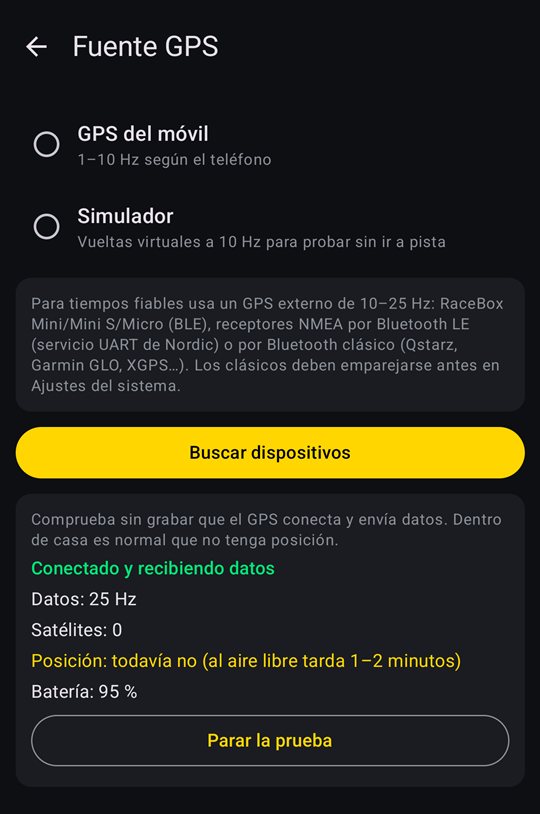
Tras elegir tu GPS, pulsa Probar conexión: sin grabar nada, verás si conecta, cuántos datos por segundo envía (Hz), los satélites, si ya tiene posición y su batería. Puedes hacerlo en casa: allí es normal que no tenga posición; al aire libre tarda uno o dos minutos.
En la lista, los aparatos que no parecen un GPS (teles, auriculares, móviles…) quedan plegados en Ver otros dispositivos. Mientras está conectado, un RaceBox deja de aparecer en la búsqueda: es normal.
4. Circuitos, meta y sectores
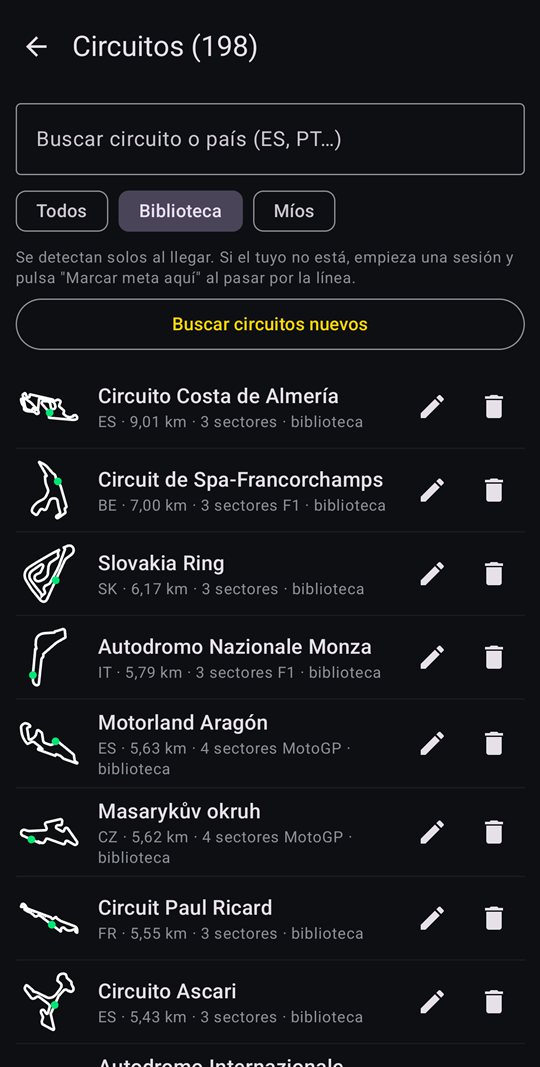
- Biblioteca. La app trae más de 1.250 circuitos y karts (datos de OpenStreetMap) de casi toda Europa (también los países nórdicos, los bálticos, Grecia y los Balcanes) y de Latinoamérica: Argentina, Brasil, México, Chile, Uruguay, Colombia, Perú, Ecuador, Venezuela, Bolivia, Paraguay, Centroamérica y República Dominicana. Puedes buscar por nombre o país (ES, PT, IT, AR…). Si el tuyo no está, márcalo tú o pídenoslo en sugerencias.
- Circuitos nuevos sin actualizar la app. Cuando añadimos circuitos, la app los descarga sola de polelaps.com (lo comprueba una vez al día, sin enviar ningún dato tuyo). Si no quieres esperar, en Circuitos pulsa Buscar circuitos nuevos. La biblioteca entera ocupa menos de 2 MB, así que se descarga completa, no por países.
- Sectores oficiales. En los circuitos de MotoGP, WorldSBK y F1 se usan la meta y los sectores oficiales de esa categoría, según hayas elegido moto o coche. Están situados a partir de los mapas oficiales, con unos metros de margen. En el resto, la vuelta se divide en 3 sectores iguales.
- Circuitos propios. Los que creas con «Marcar meta aquí» aparecen en Míos. Puedes renombrarlos o borrarlos; al borrar uno, tus sesiones se conservan.
- Variantes (desde la versión 0.1.6). Muchos kartódromos y algunos circuitos tienen varios trazados. Mientras grabas, toca el nombre del circuito arriba: puedes elegir otra variante o crear una con «Otra variante: marcar su meta» y pulsar «Marcar meta aquí» al pasar por su línea. Al cambiar de variante, las vueltas que llevas se vuelven a cronometrar con ella. Cada variante tiene sus propios récords y su progreso, y la próxima vez empieza en la última que rodaste. Renómbralas en Circuitos → Míos (por ejemplo «Zárate · corta»).
Editar la meta y los sectores
Abre una sesión, el icono del lápiz (Editar meta y sectores), arriba a la derecha. Sobre el trazado que grabaste:
- Toca donde está la línea de meta.
- Toca los puntos de sector en orden de marcha (puedes deshacer o quitarlos).
- Pulsa Guardar y recalcular vueltas: todas las vueltas de la sesión se vuelven a cronometrar con las nuevas líneas, sin perder datos.
Para tramos de punto a punto (subidas, rallys) elige Tramo (salida → llegada). En circuitos con líneas oficiales siempre puedes Volver a los sectores oficiales.
Si una sesión no tiene meta (por ejemplo, un archivo importado de un circuito desconocido), verás «Esta sesión no tiene línea de meta» con el botón Definir meta.
5. Ver una sesión
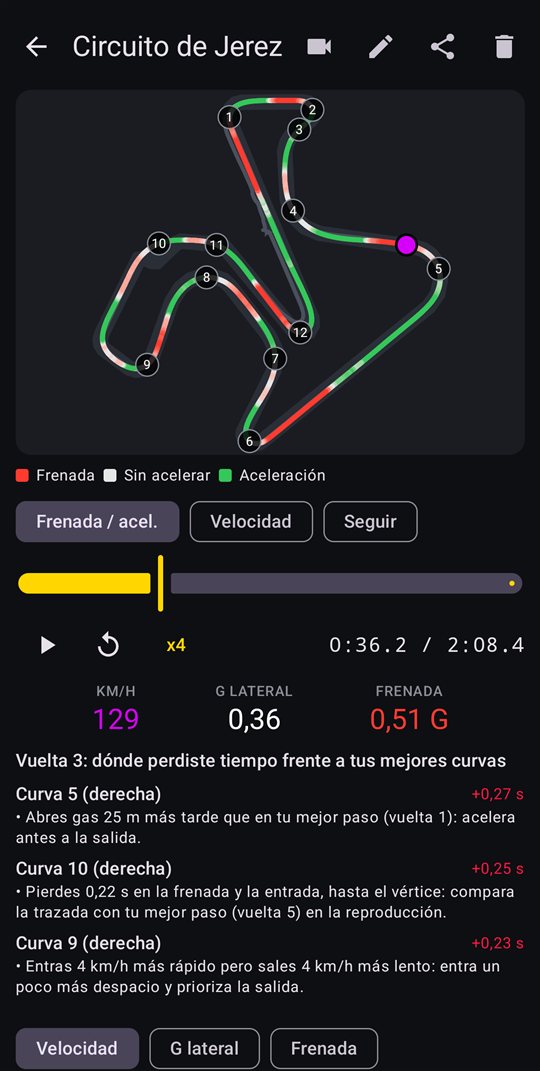
En Sesiones están todas tus tandas. Al abrir una tienes las pestañas Resumen y Coach, y Datos si activas Telemetría Pro en Ajustes.
Resumen
- Mejor vuelta, Óptima y Constancia. La óptima suma tus mejores sectores, aunque sean de vueltas distintas: es lo que podrías hacer juntando lo mejor de la sesión.
- Lista de vueltas con sectores (en morado tu mejor sector). Las vueltas marcadas con «señal» tuvieron cortes de GPS y no cuentan para la mejor.
- Repetición en el mapa: la vuelta se reproduce con colores de frenada (rojo), aceleración (verde) y sin acelerar. Toca otra vuelta para verla como fantasma y comparar las trazadas.
- Gráficas de velocidad, inclinación o G, y la diferencia de tiempo entre dos vueltas a lo largo de la vuelta (si la línea sube, la vuelta pierde tiempo ahí).
- Reglaje y condiciones: suspensión, neumáticos, presiones y temperatura de pista (ver Reglaje, neumáticos y pista).
- Notas de la sesión: cualquier otra cosa, como sensaciones o el tiempo.
- Piloto y vehículo: indica quién conducía (útil para sesiones de amigos) y con qué moto o coche.
- Compartir la vuelta como imagen: una tarjeta con el tiempo, la punta, la mínima y la inclinación o G, lista para redes.
- Compartir la vuelta sobre una foto (desde la 0.1.10): elige una foto tuya de la galería (la app no pide permiso para ver las demás) y pon encima el tiempo, el circuito, los sectores, la punta, la mínima, la inclinación o G y el trazado de la vuelta. Tres diseños: Clásico (todos los datos), Banda (franja amarilla con el tiempo) y Mínimo (solo el tiempo grande, para que luzca la foto).
- Compartir la sesión en la web: arriba, Compartir > Enlace web crea un enlace para que cualquiera la vea en el navegador, sin la app: una repetición animada de la vuelta como en la tele (crono, sectores que se van pintando, velocidad, inclinación en moto o fuerza G en coche, y otra vuelta de fantasma con la diferencia en directo), el circuito con la vuelta coloreada por velocidad, las vueltas con sus sectores y dos vueltas comparadas (velocidad y diferencia de tiempo). Tocando una vuelta se ve en la repetición; tocando dos, la segunda va de fantasma. Dura 90 días; desde el mismo sitio puedes enviarlo otra vez o dejar de compartir.
- Tu progreso en el circuito: récord personal y gráfica con la mejor vuelta de cada sesión.
Datos (Telemetría Pro)
Para quien prefiere leer los datos por sí mismo (desde la versión 0.1.9). Se activa en Ajustes → Telemetría Pro; el coach sigue disponible, y si no lo quieres lo ocultas con Pestaña Coach.
- Elige una o dos vueltas arriba para verlas superpuestas. Si en el resumen estás comparando con otra sesión o con un amigo, se usa esa comparación.
- Gráficas apiladas: velocidad, diferencia de tiempo, G longitudinal, G lateral, inclinación (moto) y altitud. Activa las que quieras con sus botones; la app las recuerda para todas las sesiones.
- Un cursor para todo: arrastra de lado con un dedo sobre las gráficas y verás el valor de cada vuelta en ese punto y dónde está en el mapa. Tocar el mapa también mueve el cursor.
- Zoom: pellizca con dos dedos sobre las gráficas y arrastra con dos dedos para moverte. Toda la vuelta lo deshace. Puedes ver el eje por distancia o por tiempo.
- Círculo de fricción (G-G): cada punto es la G lateral y longitudinal en un instante del tramo que se ve. Cuanto más cerca del borde en toda la vuelta, más agarre aprovechas.
- Estadísticas de cada vuelta, o del tramo ampliado: tiempo, velocidades máxima y mínima, frenada y aceleración máximas, G lateral, inclinación máxima a cada lado, porcentaje del tiempo acelerando y frenando (calculado con la G del GPS, no con los pedales) y frecuencia del GPS.
- Pantalla completa: para verlo con el móvil en horizontal, con el mapa y el G-G a un lado y las gráficas al otro.
6. El coach curva a curva
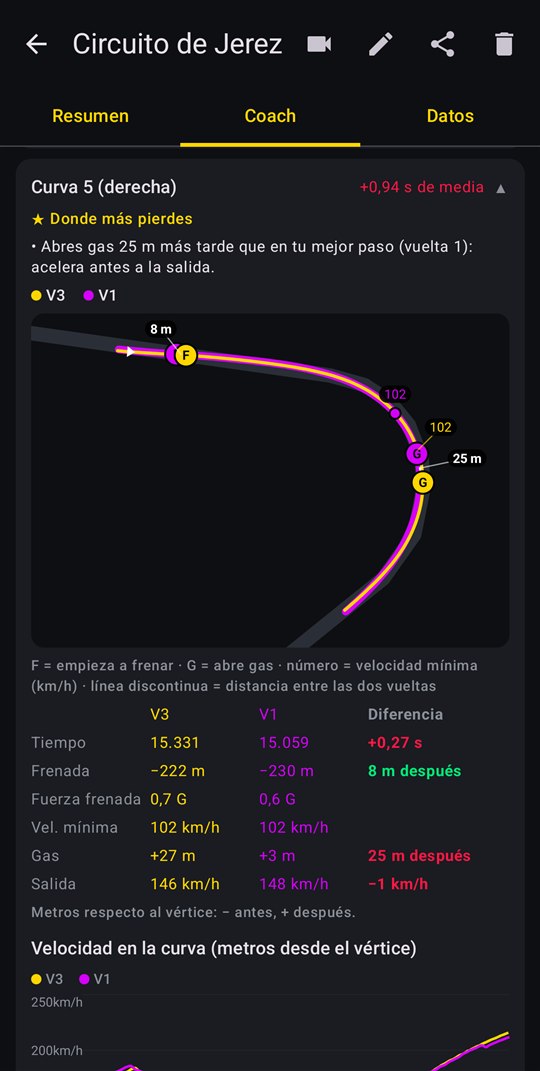
Con 2 vueltas válidas o más, el coach detecta las curvas del circuito y te dice en cuáles pierdes tiempo y por qué. En la pestaña Coach eliges qué analizar:
- Toda la sesión: tu paso típico por cada curva frente a tu mejor paso por ella.
- Una vuelta: esa vuelta curva a curva frente a tus mejores pasos de la sesión.
- Contra otra vuelta (si estás comparando): tu vuelta frente a la de otra sesión o un amigo.
Numeración oficial (desde la versión 0.1.11): en 18 circuitos las curvas llevan su número oficial, como en los planos del circuito: Jerez, Montmeló, Valencia, Aragón, Navarra, Jarama, Albacete, Portimão, Estoril, Mugello, Misano, Assen, Sachsenring, Red Bull Ring, Donington, Balaton Park, Termas de Río Hondo e Interlagos. Iremos añadiendo más. Si la app toma dos curvas oficiales como una sola, sale «Curva 5-6». En el resto de circuitos la numeración es la de la app, en orden desde la meta.
Arriba verás también la vuelta ideal por curvas: tu mejor paso por cada curva, de cualquier vuelta. Corta la vuelta más fino que los sectores, por eso suele bajar de la óptima.
El mapa de cada curva
Toca una curva para abrirla. Verás las dos trazadas sobre el mapa: la de referencia, ancha y morada, debajo, y la tuya, fina y amarilla, encima.
- F = donde empiezas a frenar. G = donde abres gas.
- El número en cada trazada es la velocidad mínima en km/h.
- La línea discontinua une el mismo punto (frenada, gas) de las dos vueltas e indica los metros de diferencia.
Debajo, una tabla compara las dos vueltas: tiempo en la curva, punto de frenada y de gas (en metros respecto al vértice: − antes, + después), fuerza de frenada, velocidad mínima y velocidad de salida. Y una gráfica de velocidad en la curva.
En la fila Frenada: «−120 m» es donde empieza la frenada; «−110 m, ligera», una deceleración suave (un toque de freno o soltar gas, por debajo de 0,3 G); «sin frenar», que no decelera nada, como en una curva que se pasa acelerando. Los puntos de frenada solo se comparan, y solo dan consejo, si en las dos vueltas se frena fuerte (0,5 G o más): en una curva rápida en la que solo se toca el freno, cada toque cae en un sitio distinto y la diferencia no significa nada.
Qué significan los consejos
- Frenas X m antes: retrasa la frenada.
- Frenas con menos fuerza: frena más fuerte y podrás frenar más tarde.
- Pasas lento por el vértice: suelta el freno antes y lleva más velocidad.
- Entras rápido y sales lento: entra un poco más despacio y prioriza la salida.
- Abres gas X m más tarde / Sales lento: acelera antes, busca una salida más limpia.
7. Comparar con otra sesión o un amigo
- Abre tu sesión y pulsa Comparar con otra sesión (tuya o de un amigo).
- Elige una sesión del mismo circuito. Para comparar con un amigo, pídele su sesión (archivo VBO, CSV o el CSV que exporta PoleLaps) e impórtala desde Sesiones; al importar, pon su nombre como piloto.
- Verás cuánto te falta (o cuánto le sacas) y en qué curvas, y en la pestaña Coach podrás ver cada curva de las dos vueltas en el mapa.
- Si las dos sesiones tienen reglaje o condiciones apuntados, verás también qué cambió entre ellas (ver Reglaje, neumáticos y pista).
8. Reglaje, neumáticos y pista
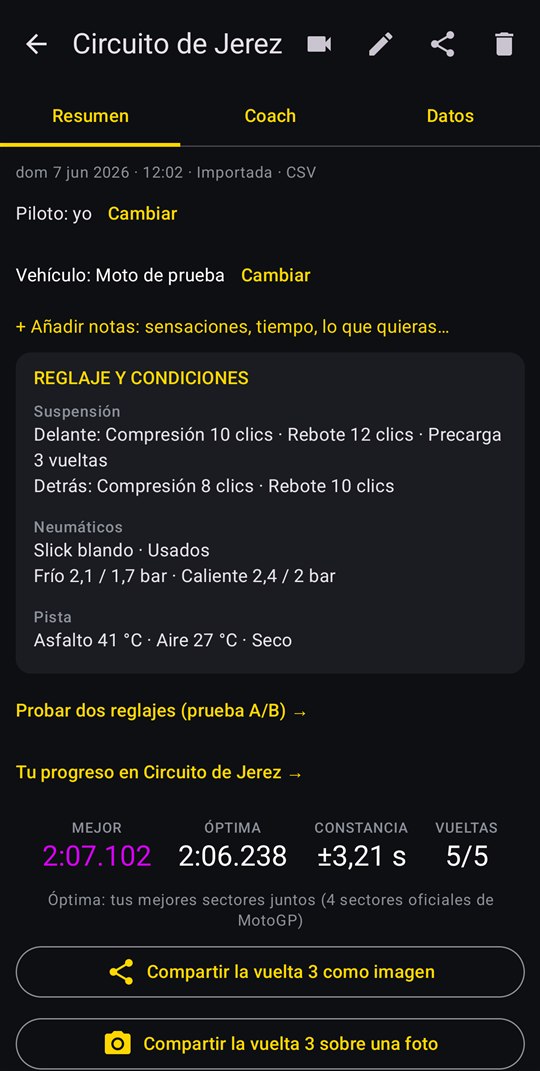
Desde la versión 0.1.3 cada sesión tiene una tarjeta Reglaje y condiciones para apuntar con qué rodaste. Todo es opcional: rellena solo lo que te interese y, si no lo usas, ocúltala en Ajustes → Reglaje, neumáticos y pista. Tiene tres apartados; toca cualquiera para rellenarlo:
- Suspensión: compresión, rebote y precarga, delante y detrás, y las alturas. Aparece si la sesión tiene vehículo.
- Neumáticos: modelo o compuesto delante y detrás, si son nuevos o usados, y las presiones en frío y en caliente (en bar o psi; al cambiar de unidad se convierten solas).
- Pista: temperatura del asfalto y del aire, y si estaba seca, húmeda o mojada.
La ficha de cada vehículo (una sola vez)
La primera vez que toques Suspensión con una moto o coche, la app te pide su ficha: marca solo lo que se puede ajustar en ese vehículo, cómo lo cuentas (clics o vueltas desde cerrado, o mm para las alturas) y su rango, p. ej. «rebote trasero: 0–20 clics». Parte de una plantilla de moto o de coche. Puedes cambiarla luego desde el propio formulario con Editar la ficha de reglajes; las sesiones antiguas conservan lo que tenían.
Apuntarlo cuesta un toque
Cuando ya tienes una sesión anterior con el mismo vehículo, la tarjeta pregunta «¿Has tocado algo desde la última tanda?»:
- Igual que la anterior copia de un toque la suspensión, los neumáticos (pasan a «usados») y las presiones en frío. Las presiones en caliente y la pista no se copian: se miden cada vez.
- He cambiado… abre el formulario con lo anterior ya puesto. Usa los botones − / + (grandes, para usarlos con guantes) o escribe el número. Lo que cambias se marca en amarillo.
En la tarjeta verás los cambios frente a la sesión anterior, p. ej. «Rebote trasero +2 clics».
Al comparar dos sesiones
Al comparar con otra sesión de la misma moto o coche, además del tiempo verás qué cambió entre las dos: el reglaje («Reglaje frente a 5 oct 10:30: rebote trasero +2 clics») y las condiciones («Presión en frío del. 2,1 bar → 2 bar · Asfalto 32 °C → 41 °C»). Con sesiones de otro vehículo solo se compara la pista.
Qué cambió en pista
En esa misma comparación, pulsa Qué cambió en pista (mejores vueltas). La app compara las dos sesiones enteras, no una vuelta suelta:
- La media de las mejores vueltas de cada una (hasta 3) y su constancia.
- Por tipo de curva (lentas, medias y rápidas): cuánto tiempo ganas o pierdes por vuelta, y si cambia la velocidad de salida, la del vértice y la fuerza de frenada. Por ejemplo: «Curvas lentas: salida +3 km/h · vértice igual · frenada igual».
- Arriba, lo que cambiaste («Con: rebote trasero +2 clics») y lo que cambió además (presiones, asfalto…). Con Ver curva a curva tienes el detalle de cada curva.
Prueba A/B
Para saber de verdad si un ajuste funciona, pulsa Probar dos reglajes (prueba A/B) debajo de la tarjeta. Elige un solo ajuste y dos valores (por ejemplo rebote trasero 10 y 12 clics) y pulsa Empezar la prueba.
- En la pantalla de inicio verás qué toca en la siguiente tanda (A o B), alternando para que las dos tengan las mismas condiciones. Ajusta la moto antes de salir.
- Al terminar cada tanda, la sesión pregunta ¿Con cuál has rodado?: un toque en A o en B.
- Cuando quieras, pulsa Ver resultado: compara todas las tandas A con todas las B y te dice si una parece mejor o si no hay diferencia clara (menos de 0,15 s de media).
- Al acabar, pulsa Terminar la prueba. Las sesiones conservan su reglaje.
Tu historia de reglajes
En Tu progreso en el circuito, cada sesión muestra qué cambiaste respecto a la anterior y la temperatura del asfalto, junto a su mejor vuelta. Así ves de un vistazo con qué reglaje fuiste más rápido.
9. Rodar en grupo y directo
Con Rodar en grupo (en Online, abajo en la pantalla de inicio), tus amigos y el box os ven a todos en directo en una página web: cada piloto con su color en el mapa, torre de tiempos y sectores.
- Pon tu nombre en Online.
- Uno pulsa Crear grupo y le da un nombre. Los demás pulsan Unirme y escriben el código de 5 letras, o abren el enlace de Invitar. Desde la versión 0.1.12, con el grupo activo la tarjeta de Inicio enseña el código QR del grupo: quien lo escanea con la cámara ve el directo sin instalar nada.
- Con el grupo activo, cada sesión que grabes se ve en directo. Ver abre la página; cualquiera con el enlace puede seguirla sin instalar nada.
- Pulsa Salir cuando acabéis. El grupo se borra 12 horas después de la última actividad.
Para compartir tu sesión en solitario (por ejemplo con la familia), crea un grupo para ti solo y manda el enlace.
La página del directo
Se ve como una retransmisión: la torre de tiempos con la mejor vuelta de cada uno, la diferencia con el primero y los sectores de su última vuelta (morado: mejor del grupo, verde: mejor personal); el mapa del circuito con cada piloto; y la tarjeta del piloto que toques en la torre, con su velocidad, la vuelta en curso, el delta con su mejor vuelta y a cuánto va del de delante y del de detrás. Cuando alguien hace la vuelta más rápida sale un cartel, y cuando dos van a menos de segundo y medio aparece el duelo en pista con la distancia en tiempo.
Pantalla completa la deja a toda pantalla para una tele en el box. Para OBS abre la versión sin fondo, para ponerla encima de un vídeo si alguien retransmite. La inclinación sale en la tarjeta desde la versión 0.1.7 de la app, si vas en moto.
10. Clasificaciones online
Si quieres, tu mejor vuelta de cada sesión entra en la clasificación del circuito, separada en motos y coches y por vehículo.
- Actívalo en Online → Enviar mis tiempos a la clasificación (hace falta poner tu nombre).
- Solo cuentan circuitos de la biblioteca con sus líneas originales y vueltas grabadas en pista, no archivos importados.
- Se envían tu nombre, el circuito, el vehículo, el tiempo, los sectores, la fecha y el tipo de GPS. Nunca tu recorrido.
- Borrar mis tiempos online los quita todos del servidor y apaga el envío. En el móvil no se borra nada.
11. Vídeo con datos
Superpón tus datos sobre el vídeo de tu cámara (GoPro, Insta360, el propio móvil…): velocidad, tiempo de vuelta, delta, mapa con tu trazada, gas y freno, e inclinación o G.
- Abre la sesión, el icono de la cámara (Vídeo con datos), arriba a la derecha, y elige el vídeo de esa tanda.
- Sincroniza: pausa el vídeo justo cuando cruzas la línea de meta y pulsa La meta es aquí, y elige qué paso por meta es (el inicio de qué vuelta): sale marcado el más probable, pero si la cámara tenía mal la hora, cuenta las vueltas del vídeo. Si no hay paso por meta, ajusta con + y − hasta que la velocidad coincida con la imagen.
- En Qué exportar, elige el vídeo completo, una vuelta (sale con 3 s antes y 4 después; si el vídeo solo tiene una parte, esa parte) o Tramo a mano, con Empieza aquí y Acaba aquí. Las vueltas que no están en el archivo salen en gris: si la cámara partió la grabación en varios archivos, elige el que la tenga.
- Pulsa Exportar vídeo y deja la app abierta hasta que termine. El vídeo se guarda en Películas/PoleLaps y puedes compartirlo directamente.
12. Importar, exportar y copia de seguridad
- Importar (en Sesiones): RaceBox (VBO), RaceChrono y TrackAddict (CSV), GPX y NMEA. También puedes abrir el archivo desde otra app con «Abrir con PoleLaps». Si el circuito no se reconoce, marca la meta en el editor.
- Exportar: en la sesión, el icono de compartir de arriba (Exportar CSV), para usarla en otras herramientas o pasársela a un amigo.
- Copia de seguridad (Ajustes): guarda todas tus sesiones, circuitos y notas en un archivo .zip. Guárdalo en Drive o en el ordenador; si cambias de móvil, pulsa Restaurar. Se añaden las sesiones que falten y se saltan las que ya están.
13. Ajustes
- Ancho de las líneas de meta y sector: más ancho tolera mejor el GPS del móvil; más estrecho evita contar el pit lane como vuelta.
- Vuelta mínima: evita vueltas falsas si pasas dos veces por meta en poco tiempo. En karting, bájalo.
- Voz, consejos del coach por voz y vibración: ver Grabar una sesión.
- Reglaje, neumáticos y pista: muestra u oculta la tarjeta para apuntarlos en cada sesión.
- Telemetría Pro: añade la pestaña Datos a cada sesión (ver Ver una sesión). Pestaña Coach: desactívala si solo quieres los datos.
- Online tiene ahora su propia pantalla (abajo en el inicio): rodar en grupo, tu nombre y la clasificación, y la lista de sesiones compartidas en la web, desde donde puedes dejar de compartirlas. Todo lo que usa internet está apagado hasta que tú lo usas.
- Acerca de: versión de la app (indícala si nos escribes por un fallo), Enviar una sugerencia (nos llega directamente, con la versión y el modelo del móvil; desde la versión 0.1.6) y botón para escribir a soporte. También puedes enviarla desde la web en polelaps.com/sugerencias.
14. Problemas frecuentes
No cuenta las vueltas
Comprueba que arriba pone el nombre del circuito. Si pone «SIN META», pulsa «Marcar meta aquí» al pasar por meta. Si el circuito está pero no cuenta, puede que la línea de meta quede algo desplazada respecto a tu trazada: sube el ancho de las líneas en Ajustes, o corrige la meta después con «Editar meta y sectores» y las vueltas se recalculan.
Me cuenta vueltas de más al entrar en boxes
Si el pit lane pasa cerca de la meta, baja el ancho de las líneas y sube la vuelta mínima en Ajustes. Puedes recalcular la sesión ya grabada desde el editor de meta.
La grabación se paró sola
Casi siempre es el ahorro de batería del sistema. Pon la batería de PoleLaps en Sin restricciones (Ajustes del móvil → Aplicaciones → PoleLaps → Batería). Al volver a abrir la app podrás continuar la sesión.
Una vuelta sale como «no válida» o con «señal»
Se perdió la señal GPS durante esa vuelta (túnel, móvil tapado, GPS externo desconectado). La vuelta se guarda pero no cuenta como mejor vuelta para no darte un tiempo falso.
Los tiempos no coinciden con el cronometraje oficial
Con el GPS del móvil es normal una diferencia de unas décimas por vuelta. Con un GPS de 10–25 Hz bien colocado la diferencia baja a centésimas. Comprueba también que la meta está en el mismo sitio que la oficial.
La inclinación parece baja
Sin un registrador con giroscopio (como RaceBox) la inclinación se calcula con el GPS y suele salir unos grados por debajo de la real. Úsala para comparar tus vueltas entre sí más que como valor absoluto.
No encuentra mi GPS Bluetooth
Activa el Bluetooth y da permiso a la app. Los receptores de Bluetooth clásico tienen que estar en modo emparejar la primera vez (o emparejados en los ajustes del móvil si tu versión es anterior a la 0.1.5). Asegúrate de que el GPS no está conectado a otra app al mismo tiempo.
¿Necesito cuenta o conexión?
No. PoleLaps funciona sin conexión y sin cuenta. Internet solo se usa si activas las clasificaciones o el directo en grupo.
La app se cerró de golpe
Al abrirla de nuevo te ofrecerá enviar el informe del error por correo. Revisa el texto antes de enviarlo: solo incluye el error, la versión y el modelo del móvil, nunca ubicaciones ni sesiones. Nos ayuda mucho a arreglarlo.
Help guide
Everything you need to time your track sessions, understand the coach and get the most out of PoleLaps. If something is missing, write to soporte@polelaps.com or use Settings → Send a suggestion, or polelaps.com/sugerencias.
1. Before you go to the track
- Location permission. The first time you tap START the app asks for it. Choose While using the app: that's enough, because while recording the app keeps working with the screen off (you'll see a "Recording session" notification).
- Battery. Some phones (Samsung, Xiaomi, Huawei…) close apps to save battery even while they record. If the app shows the "Keep Android from stopping the recording" tip, tap Open settings and choose Unrestricted for PoleLaps.
- Bike or car. In Settings → Vehicle choose bike (you'll see lean angle) or car (you'll see G-forces). It also decides which official sectors are used: MotoGP/WorldSBK or F1.
- Your garage. Add your bikes or cars (make, model and year). Each session is linked to one, so your times and the leaderboard tell vehicles apart.
- Where to carry the phone. Firmly mounted with a view of the sky: on the tank or tail of the bike, in a car mount, or in a high pocket of your leathers. Inside a backpack or under the seat the signal gets worse.
2. Recording a session
- On the home screen tap the green START button. The GPS source and the bike or car it will record with are shown at the top; tap either to change it.
- Wait for GPS ready. If it says "Searching for satellites" or "Weak GPS", stay still under open sky for a few seconds before heading out.
- Go out on track. When you reach a circuit from the library the app detects it by itself ("Circuit detected: …") and starts counting laps from the first crossing of the line.
- If the circuit isn't in the library, tap MARK FINISH HERE just as you cross the finish line. Laps are counted from the next crossing, and the circuit is saved under Circuits → Mine for next time.
- To finish, press and hold the HOLD TO STOP button. Holding is required so an accidental tap doesn't stop it.
What you see while riding
- Delta: what you gain (green) or lose (red) against your best lap at the same point. It appears from the second lap.
- Last, Best and Predicted: predicted is how the current lap will end if you keep the same pace.
- Lean (bike) or lateral G, braking and acceleration (car), with the lap's peaks.
- When each lap closes, its time shows large for a few seconds; purple if it's your best.
- The screen stays on while the timer is showing. If you turn it off with the power button, turning it on again shows the timer without unlocking the phone (from version 0.1.9), as long as the timer was on screen when you turned it off. The rest of the phone stays locked, and the normal lock comes back when you stop recording.
Phone held sideways (from version 0.1.6): with the phone in landscape on its mount, the screen splits into two columns: delta and lap clock on the left, times, lean and the stop button on the right.
Voice and vibration
With Announce lap times by voice on, the app says each lap time and whether it's your best; handy with the phone in a pocket or with a bike intercom. With Coach advice by voice, after each lap it tells you the corner where you lost most and why ("Turn 3, braking early"). Vibrate when a lap ends uses a special pattern for your best lap.
If the app closes or the phone switches off
The recording is saved continuously. If it's cut, when you reopen the app you'll see "Recording stopped at …" with two options: Continue (carry on in the same session; only the lap in progress is lost) or View session. The card shows for 30 minutes.
3. External GPS
On the home screen, tap the GPS row (at the top, in the kit card). Supported:
- RaceBox Mini, Mini S and Micro (Bluetooth LE, up to 25 Hz). They show up when you tap Search for devices.
- PoleLaps Pod, our Bluetooth GPS (from version 0.1.12; on sale soon). It comes first when you tap Buscar dispositivos. The app checks its factory signature: with a genuine PoleLaps Pod, external GPS has no time limit. Probar conexión shows "PoleLaps Pod original".
- NMEA receivers over Bluetooth LE (Nordic UART service).
- NMEA receivers over classic Bluetooth (Qstarz, Garmin GLO, XGPS…). Turn it on in pairing mode (on the GLO, hold the button until the blue light blinks fast) and tap Search: it shows under "Nearby unpaired GPS"; tap it and accept the pairing. Once paired it always appears under "Classic Bluetooth (paired)". Before version 0.1.5 it has to be paired first in the phone's Bluetooth settings.
Pick yours and it becomes the default source. If it disconnects during a session you'll see "disconnected" and the app will try to reconnect by itself. From version 0.1.11 it carries on with the phone's GPS meanwhile: if the external one sends no position for 2 seconds (disconnected, no signal, switched off), you'll see "External GPS not responding: carrying on with the phone's GPS" and the pass over the line isn't lost; when it comes back, "External GPS back". That's why, with an external GPS, the phone's GPS stays on during the session (a little more battery). To go back to the phone's GPS, choose Phone GPS on the same screen.
The Simulator drives virtual laps at 10 Hz so you can try the app at home.
Checking that it connects
After choosing your GPS, tap Test connection: without recording anything you'll see whether it connects, how many updates per second it sends (Hz), the satellites, whether it has a position yet and its battery. You can do it at home: indoors it is normal to have no position; outdoors it takes a minute or two.
In the list, devices that don't look like a GPS (TVs, headphones, phones…) are folded under Show other devices. While connected, a RaceBox no longer shows up when scanning: that is normal.
4. Circuits, finish line and sectors
- Library. The app includes more than 1,250 circuits and karting tracks (OpenStreetMap data) from almost all of Europe (the Nordic and Baltic countries, Greece and the Balkans too) and Latin America: Argentina, Brazil, Mexico, Chile, Uruguay, Colombia, Peru, Ecuador, Venezuela, Bolivia, Paraguay, Central America and the Dominican Republic. Search by name or country (ES, PT, IT, AR…). If yours is missing, mark it yourself or ask us through suggestions.
- New circuits without updating the app. When we add circuits, the app downloads them by itself from polelaps.com (it checks once a day, sending nothing about you). If you don't want to wait, tap Look for new circuits in Circuits. The whole library is under 2 MB, so it comes in one piece rather than by country.
- Official sectors. On MotoGP, WorldSBK and F1 circuits the official finish line and sectors of that series are used, depending on whether you chose bike or car. They're placed from the official maps with a few metres of margin. Elsewhere the lap is split into 3 equal sectors.
- Your own circuits. The ones you create with "Mark finish here" appear under Mine. You can rename or delete them; deleting one keeps your sessions.
- Layouts (from version 0.1.6). Many karting tracks and some circuits have several layouts. While recording, tap the circuit name at the top: pick another layout, or create one with "Another layout: mark its finish line" and tap "Mark finish here" as you cross its line. Switching layout re-times the laps so far against it. Each layout keeps its own records and progress, and next time starts on the one you rode last. Rename them in Circuits → Mine.
Editing the finish line and sectors
Open a session, the pencil icon (Edit finish and sectors) at the top right. On the path you recorded:
- Tap where the finish line is.
- Tap the sector points in driving order (you can undo or clear them).
- Tap Save and recalculate laps: every lap in the session is re-timed with the new lines, without losing data.
For point-to-point stages (hill climbs, rallies) choose Point to point (start → finish). On circuits with official lines you can always Use the official sectors again.
If a session has no finish line (for example, a file imported from an unknown circuit), you'll see "This session has no finish line" with a Set finish line button.
5. Viewing a session
Sessions lists all your runs. Each one has the Summary and Coach tabs, plus Data if you turn on Pro telemetry in Settings.
Summary
- Best lap, Optimal and Consistency. Optimal adds up your best sectors, even from different laps: what you could do by putting together the best of the session.
- Lap list with sectors (your best sector in purple). Laps marked "signal" had GPS dropouts and don't count as your best.
- Map replay: the lap plays back coloured by braking (red), throttle (green) and coasting. Tap another lap to see it as a ghost and compare lines.
- Charts of speed, lean or G, and the time difference between two laps along the lap (where the line rises, the lap loses time).
- Setup and conditions: suspension, tyres, pressures and track temperature (see Setup, tyres and track).
- Session notes: anything else, such as how it felt or the weather.
- Driver and vehicle: who was driving (useful for friends' sessions) and with which bike or car.
- Share the session on the web: at the top, Share > Web link creates a link so anyone can view it in a browser, without the app: an animated replay of the lap like on TV (clock, sectors filling in, speed, lean on a bike or G on a car, and another lap as a ghost with the live gap), the circuit with the lap coloured by speed, the laps with their sectors and two laps compared (speed and time difference). Tap a lap to see it in the replay; tap two and the second one is the ghost. It lasts 90 days; from the same place you can send it again or stop sharing.
- Share the lap as an image: a card with the time, top speed, minimum speed and lean or G, ready for social media.
- Share the lap on a photo (from 0.1.10): pick one of your photos (the app gets no access to the rest) and put the time, circuit, sectors, top and minimum speed, lean or G and the lap's line on top of it. Three looks: Classic (all the figures), Band (a yellow band with the time) and Minimal (just the big time, so the photo shines).
- Your progress at the circuit: personal record and a chart with the best lap of each session.
Data (Pro telemetry)
For those who prefer to read the data themselves (from version 0.1.9). Turn it on in Settings → Pro telemetry; the coach is still there, and you can hide it with Coach tab.
- Pick one or two laps at the top to see them overlaid. If the summary is comparing with another session or a friend, that comparison is used.
- Stacked charts: speed, time difference, longitudinal G, lateral G, lean (bike) and altitude. Turn on the ones you want with their buttons; the app remembers them for every session.
- One cursor for everything: drag sideways with one finger on the charts to see each lap's value at that point and where it is on the map. Tapping the map moves the cursor too.
- Zoom: pinch with two fingers on the charts and drag with two fingers to move along. Whole lap undoes it. The axis can be distance or time.
- Friction circle (G-G): each dot is the lateral and longitudinal G at one moment of the visible stretch. The closer to the edge all the way round, the more grip you are using.
- Stats for each lap, or for the stretch zoomed into: time, top and lowest speed, hardest braking and acceleration, lateral G, max lean each side, share of time accelerating and braking (worked out from the GPS G, not the pedals) and GPS rate.
- Full screen: to look at it with the phone sideways, with the map and G-G on one side and the charts on the other.
6. The corner-by-corner coach
With 2 valid laps or more, the coach detects the circuit's corners and tells you where you lose time and why. In the Coach tab choose what to analyse:
- Whole session: your typical pass through each corner against your best pass through it.
- One lap: that lap corner by corner against your best passes of the session.
- Against another lap (when comparing): your lap against one from another session or a friend.
Official numbering (from version 0.1.11): at 18 circuits the corners carry their official numbers, as on the circuit maps: Jerez, Barcelona-Catalunya, Valencia, Aragón, Navarra, Jarama, Albacete, Portimão, Estoril, Mugello, Misano, Assen, Sachsenring, Red Bull Ring, Donington, Balaton Park, Termas de Río Hondo and Interlagos. More will follow. When the app takes two official corners as one, it reads "Turn 5-6". On other circuits the numbering is the app's, in order from the finish line.
At the top you'll also see the ideal lap by corners: your best pass through each corner, from any lap. It slices the lap finer than sectors, so it's usually lower than the optimal.
The map of each corner
Tap a corner to open it. You'll see both lines on the map: the reference, wide and purple, underneath, and yours, thin and yellow, on top.
- B = where you start braking. T = where you get on the throttle.
- The number on each line is the minimum speed in km/h.
- The dashed line joins the same point (braking, throttle) on both laps and shows the distance in metres.
Below, a table compares both laps: time in the corner, braking and throttle points (in metres from the apex: − before, + after), braking force, minimum speed and exit speed. Plus a speed chart through the corner.
In the Braking row: "−120 m" is where braking starts; "−110 m, light" is a gentle slowdown (a touch of the brakes or lifting off, under 0.3 G); "no braking" means no slowing down at all, as in a corner taken accelerating. Braking points are only compared, and only give advice, when both laps brake hard (0.5 G or more): in a fast corner where you only touch the brakes, each touch lands somewhere different and the gap means nothing.
What the tips mean
- You brake X m earlier: brake later.
- You brake less hard: brake harder and you'll be able to brake later.
- Slow through the apex: release the brake earlier and carry more speed.
- Fast in, slow out: enter a little slower and prioritise the exit.
- Throttle X m later / Slow exit: get on the gas earlier, look for a cleaner exit.
7. Comparing with another session or a friend
- Open your session and tap Compare with another session (yours or a friend's).
- Pick a session from the same circuit. To compare with a friend, ask for their session (VBO, CSV or the CSV PoleLaps exports) and import it from Sessions; when importing, set their name as the driver.
- You'll see how far behind (or ahead) you are and in which corners, and in the Coach tab you can see each corner of both laps on the map.
- If both sessions have a setup or conditions noted, you'll also see what changed between them (see Setup, tyres and track).
8. Setup, tyres and track
From version 0.1.3 each session has a Setup and conditions card to note what you rode with. Everything is optional: fill in only what you care about and, if you don't use it, hide it in Settings → Setup, tyres and track. It has three parts; tap any of them to fill it in:
- Suspension: compression, rebound and preload, front and rear, and ride heights. Shown when the session has a vehicle.
- Tyres: model or compound front and rear, new or used, and cold and hot pressures (bar or psi; switching units converts them).
- Track: asphalt and air temperature, and whether it was dry, damp or wet.
Each vehicle's sheet (once)
The first time you tap Suspension with a bike or car, the app asks for its sheet: tick only what that vehicle can adjust, how you count it (clicks or turns out from fully closed, or mm for heights) and its range, e.g. "rear rebound: 0–20 clicks". It starts from a bike or car template. You can change it later from the form with Edit the setup sheet; old sessions keep what they had.
Noting it takes one tap
Once you have a previous session with the same vehicle, the card asks "Changed anything since the last run?":
- Same as last time copies the suspension, the tyres (now "used") and the cold pressures in one tap. Hot pressures and the track are not copied: they are measured each time.
- I changed… opens the form with the previous values already in. Use the big − / + buttons (made for gloves) or type the number. What you change shows in yellow.
The card shows the changes since the previous session, e.g. "Rear rebound +2 clicks".
When comparing two sessions
When you compare with another session on the same bike or car, besides the time you'll see what changed between them: the setup ("Setup vs 5 Oct 10:30: rear rebound +2 clicks") and the conditions ("Front cold pressure 2.1 bar → 2 bar · Asphalt 32 °C → 41 °C"). With a session on another vehicle only the track is compared.
What changed on track
In that same comparison, tap What changed on track (best laps). The app compares both sessions as a whole, not a single lap:
- The average of the best laps of each (up to 3) and their consistency.
- By kind of corner (slow, medium and fast): time gained or lost per lap, and whether exit speed, apex speed and braking force change. For example: "Slow corners: exit +3 km/h · apex the same · braking the same".
- At the top, what you changed ("With: rear rebound +2 clicks") and what else changed (pressures, asphalt…). Show corner by corner gives the detail of each corner.
A/B test
To really know whether a setting works, tap Test two setups (A/B test) under the card. Choose one setting and two values (for example rear rebound 10 and 12 clicks) and tap Start the test.
- The home screen shows which one is next (A or B), alternating so both get the same conditions. Set the bike before going out.
- After each run, the session asks Which one did you ride this run with?: one tap on A or B.
- Whenever you want, tap See result: it compares all A runs with all B runs and tells you whether one looks better or there is no clear difference (under 0.15 s on average).
- When you are done, tap End the test. Sessions keep their setup.
Your setup history
In Your progress at the circuit, each session shows what you changed since the previous one and the asphalt temperature, next to its best lap. So you can see at a glance which setup was fastest.
9. Group riding and live timing
With Ride in a group (in Online, at the bottom of the home screen), your friends and the pit box see everyone live on a web page: each rider in their own colour on the map, a timing tower and sectors.
- Enter your name in Online.
- One person taps Create group and names it. The others tap Join and type the 5-letter code, or open the Invite link. From version 0.1.12, with the group active the Home card shows the group's QR code: anyone who scans it with their camera sees the live page without installing anything.
- While the group is active, every session you record is shown live. View opens the page; anyone with the link can follow without installing anything.
- Tap Leave when you're done. The group is deleted 12 hours after the last activity.
To share a solo session (with family, say), create a group just for yourself and send the link.
The live page
It looks like a broadcast: the timing tower with everyone's best lap, the gap to the leader and the sectors of their last lap (purple: group best, green: personal best); the circuit map with every rider; and the rider card for whoever you tap in the tower, with speed, the current lap, the delta to their best lap and how far they are from the riders just ahead and behind. A banner shows the fastest lap, and when two riders are within a second and a half the battle on track appears with the gap in seconds.
Pantalla completa (full screen) is for a TV in the pit box. Para OBS opens a version with no background to lay over video if someone streams. Lean angle shows on the card from app version 0.1.7, on a bike.
10. Online leaderboards
If you want, your best lap of each session goes into the circuit leaderboard, split into bikes and cars and by vehicle.
- Turn it on in Online → Send my times to the leaderboard (you need to enter your name).
- Only library circuits with their original lines and laps recorded on track count, not imported files.
- Your name, circuit, vehicle, time, sectors, date and GPS type are sent. Never your path.
- Delete my online times removes them all from the server and turns sending off. Nothing is deleted on your phone.
11. Video with data
Overlay your data on your camera footage (GoPro, Insta360, the phone itself…): speed, lap time, delta, a map with your line, throttle and brake, and lean or G.
- Open the session, the camera icon (Video with data) at the top right, and pick the video from that run.
- Sync: pause the video exactly as you cross the finish line and tap The line is here, then pick which crossing it is (the start of which lap): the likeliest is marked, but if the camera clock was wrong, count the laps in the video. If there's no crossing, adjust with + and − until the speed matches the footage.
- Under What to export, pick the whole video, one lap (with 3 s before and 4 after; if the video only has part of it, that part) or Mark by hand, with Starts here and Ends here. Laps that aren't in the file are greyed out: if the camera split the recording into several files, choose the one that has it.
- Tap Export video and keep the app open until it finishes. The video is saved in Movies/PoleLaps and you can share it straight away.
12. Import, export and backup
- Import (in Sessions): RaceBox (VBO), RaceChrono and TrackAddict (CSV), GPX and NMEA. You can also open a file from another app with "Open with PoleLaps". If the circuit isn't recognised, mark the finish line in the editor.
- Export: in the session, the share icon at the top (Export CSV), to use it in other tools or give it to a friend.
- Backup (Settings): saves all your sessions, circuits and notes into a .zip file. Keep it in Drive or on your computer; if you change phones, tap Restore. Missing sessions are added and existing ones skipped.
13. Settings
- Width of finish and sector lines: wider tolerates the phone's GPS better; narrower avoids counting the pit lane as a lap.
- Minimum lap: avoids false laps if you cross the line twice in a short time. Lower it for karting.
- Voice, coach tips by voice and vibration: see Recording a session.
- Setup, tyres and track: shows or hides the card to note them in each session.
- Pro telemetry: adds the Data tab to each session (see Viewing a session). Coach tab: turn it off if you only want the data.
- Online now has its own screen (at the bottom of home): group riding, your name and the leaderboard, and the list of sessions shared on the web, where you can stop sharing them. Everything that uses the internet is off until you use it.
- About: app version (include it if you report a bug), Send a suggestion (it reaches us directly, with the version and phone model; from version 0.1.6) and a button to contact support. You can also send one from the web at polelaps.com/sugerencias.
14. Troubleshooting
It doesn't count laps
Check that the circuit name shows at the top. If it says "NO FINISH LINE", tap "Mark finish here" as you cross the line. If the circuit is there but laps aren't counted, the finish line may be slightly off your line: increase the line width in Settings, or fix the finish later with "Edit finish and sectors" and the laps are re-timed.
It counts extra laps when I go into the pits
If the pit lane passes close to the finish line, lower the line width and raise the minimum lap in Settings. You can re-time the recorded session from the finish editor.
The recording stopped by itself
It's almost always the system's battery saver. Set PoleLaps' battery to Unrestricted (phone Settings → Apps → PoleLaps → Battery). When you reopen the app you can continue the session.
A lap shows as "invalid" or "signal"
The GPS signal was lost during that lap (tunnel, phone covered, external GPS disconnected). The lap is kept but doesn't count as your best so you don't get a false time.
Times don't match the official timing
With the phone's GPS a difference of a few tenths per lap is normal. With a well-placed 10–25 Hz GPS it drops to hundredths. Also check the finish line is in the same place as the official one.
Lean angle looks low
Without a logger with a gyroscope (such as RaceBox) lean is calculated from GPS and usually comes out a few degrees below the real value. Use it to compare your laps with each other rather than as an absolute value.
It can't find my Bluetooth GPS
Turn Bluetooth on and give the app permission. Classic Bluetooth receivers must be in pairing mode the first time (or paired in the phone's settings if your version is older than 0.1.5). Make sure the GPS isn't connected to another app at the same time.
Do I need an account or a connection?
No. PoleLaps works offline and without an account. The internet is only used if you turn on leaderboards or group live timing.
The app crashed
When you open it again it will offer to email the error report. Check the text before sending: it only includes the error, the app version and the phone model, never locations or sessions. It helps us a lot to fix it.